Ingredients of a Touch System
Elo sells a wide range of touch solutions to cover all user needs and
abilities:
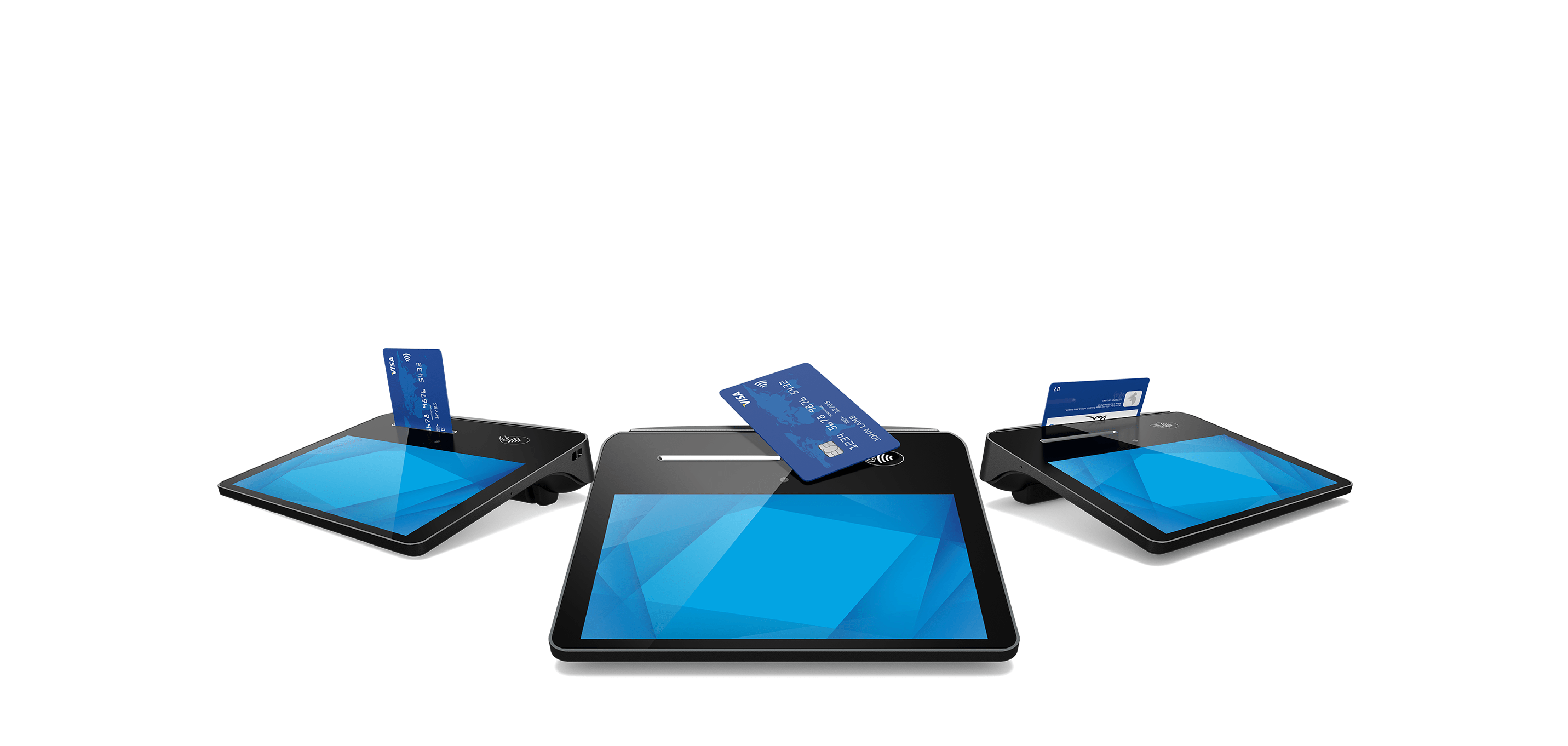
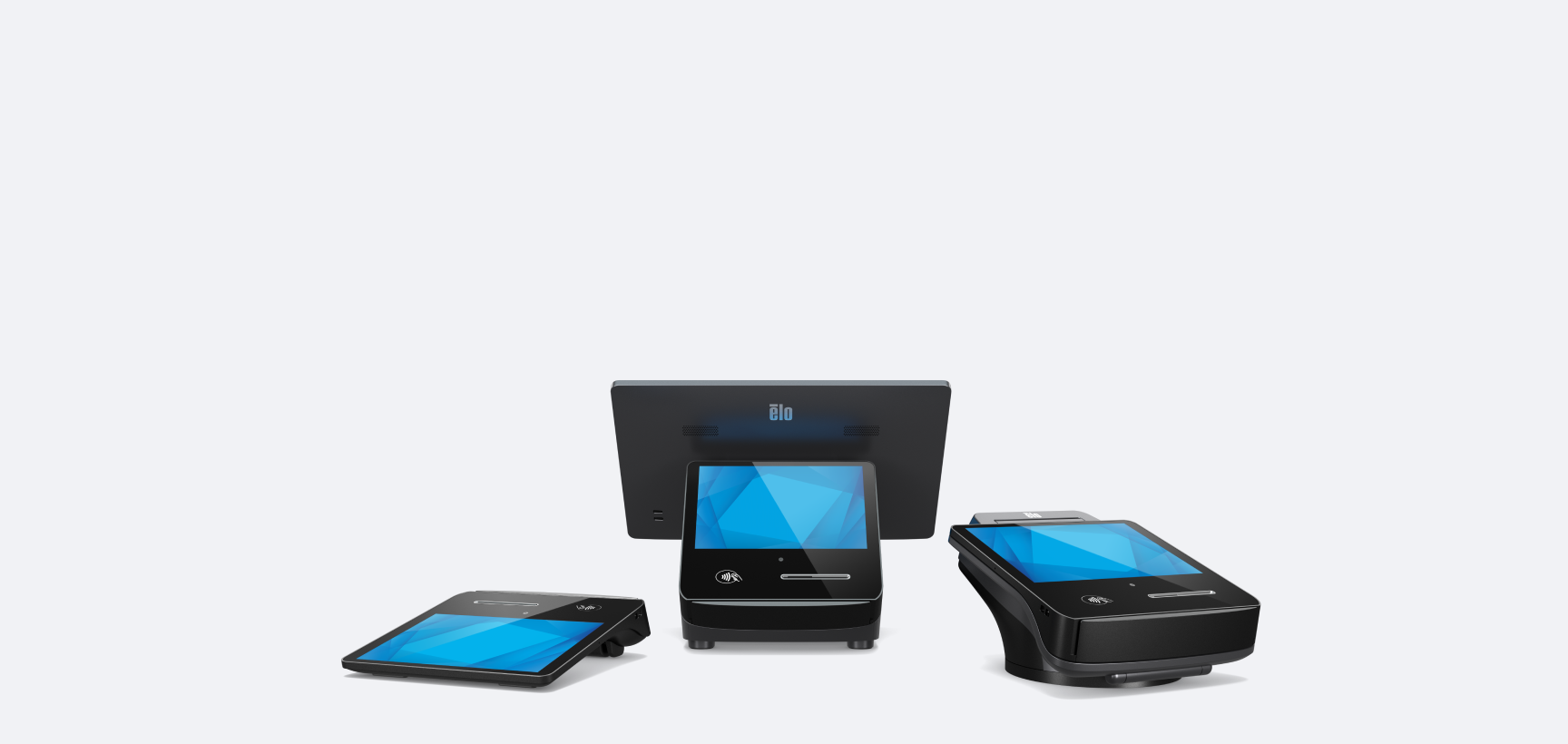
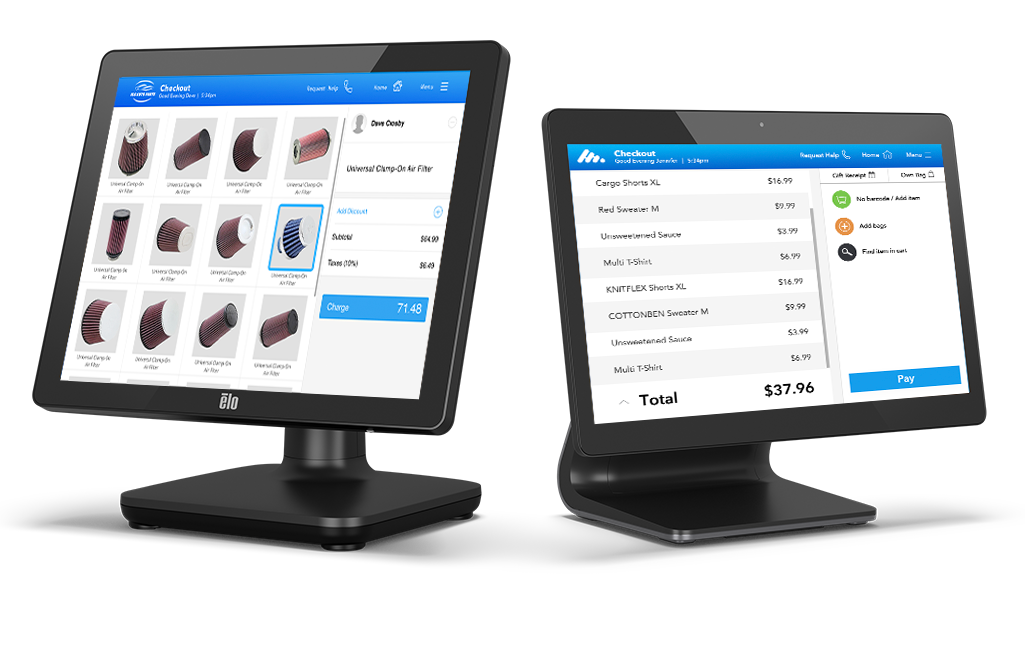
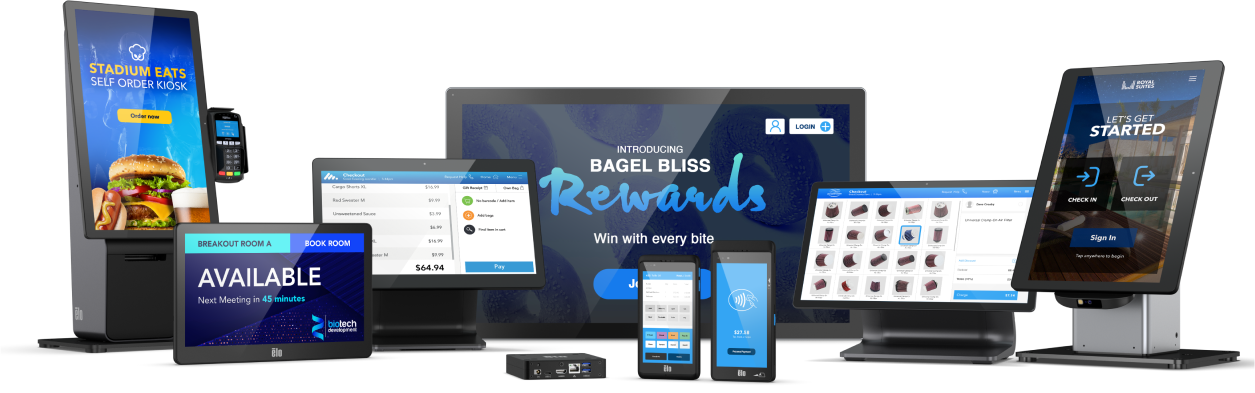
- Touchcomputers:
a complete computing solution with touch capabilities
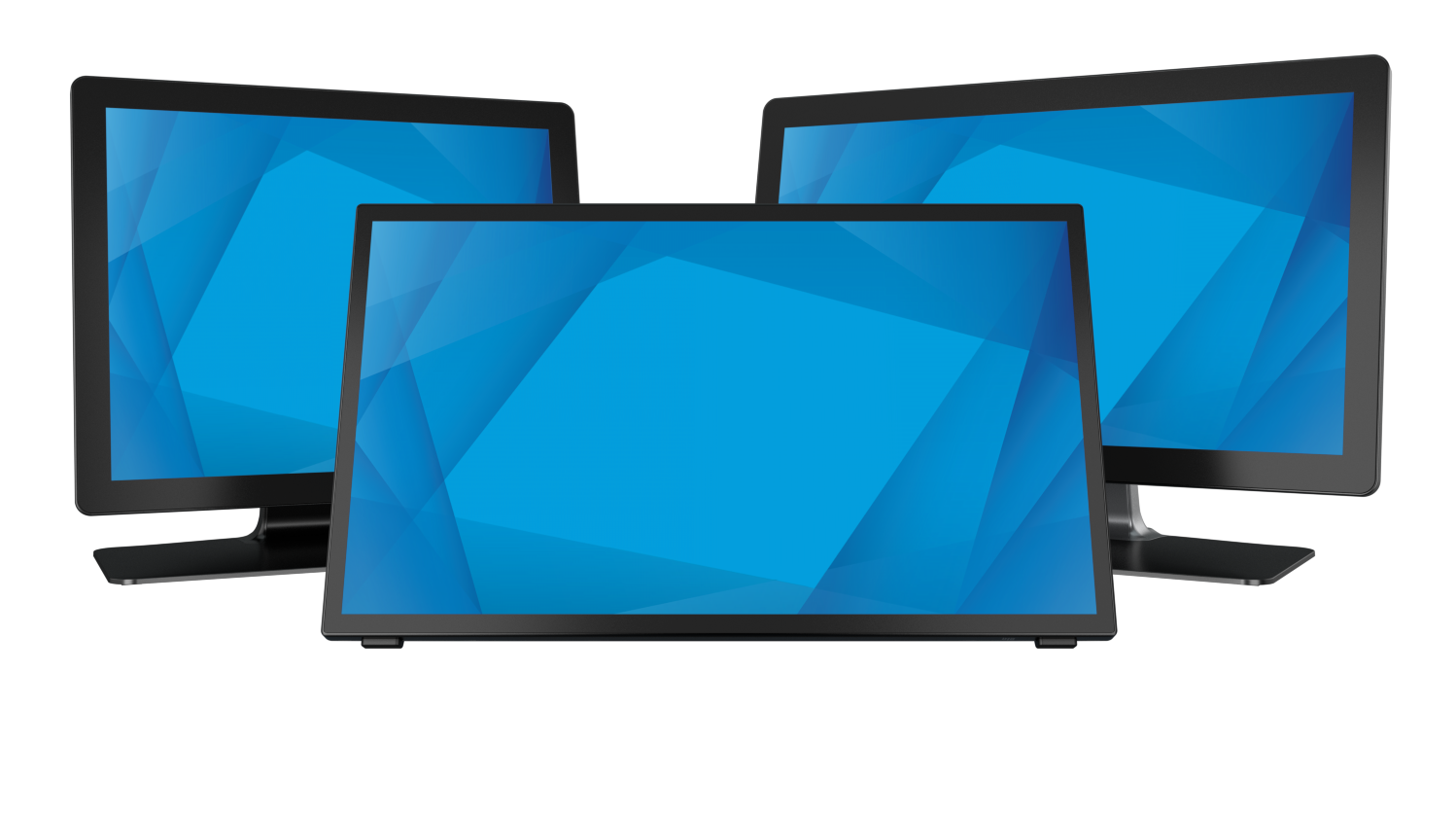
- Touchmonitors:
a quick and simple way to add touch capability
to an existing computer system
- Touchscreens:
just the basics–hardware components that are added to
existing LCD or other displays
Buy a Complete Solution: LCD Touchcomputer
Need a fast, easy touch solution? Buy a complete
touchcomputer system that includes the computer, an
LCD display, and completely integrated touch capabilities. You have
a functioning touch system out of the box.
Things to think about:
Add Touch to an Existing Computer System: Buy an LCD Touchmonitor
If you already have a computer system but want to add touch capabilities,
the easiest solution is to purchase an LCD
touchmonitor.
The touch functionality is already built in!
Things to think about:
- Size. What size display do you want?
- Form/factor. Will your touchmonitor be on a desk
or countertop, or will it be contained within a kiosk, a rack, or
other enclosure? (additional
guidance)
- Color. What case color do you want? Black, dark
gray, and beige are the most popular choices.
- Touch technology. We offer a separate
introduction to our technologies and guidance on the best
technology for your needs.
- Peripherals. Do you want peripherals such as a
fingerprint reader, magnetic stripe reader, or customer display?
Our product pages for LCD
touchmonitors include complete details on these
and many other specifications.
When you purchase a touchmonitor, you will need to install the appropriate
driver on your existing computer. Drivers are generally written to
match the operating system of the computer. For example, if your computer
is running WIndows XP Professional, you would use the Elo driver for
Windows XP Professional, regardless of whether you have a touchscreen or an LCD. On occasion, drivers are written to match a certain
touch technology rather than the operating system. Also, some peripherals
may require their own, additional drivers.
Add Touch to Your Own Displays: Buy a Touchscreen
with Controller and Driver
If you are an experienced system integrator or OEM, you may wish to
purchase only the basic touchscreen, then integrate it into
your own products. You'll need the touchscreen, as well as its corresponding
controller and cables, and a driver suitable for your operating system.
Touchscreen
The touchscreen is, literally, the user's first point of contact with
a touch system. It may be a physical film overlaid on top of an LCD
that is sensitive to the pressure of a touch. Or, it may be an grid
of invisible waves in front of a display that is interrupted by a finger
or other stylus.
Things to think about:
- Transparency. Do you need 100% of the original
display coming through, uninterrupted by any overlay? Or, can you
accept less transparency because you need an overlay?
- Hardiness. Do you need a touchscreen resistant
to vandalism? Will your screen be in a harsh outdoor (rain, snow,
ice ) or demanding indoor (industrial, restaurant kitchen) environment?
Some touchscreens are built to demanding NEMA 4 or IP65 standards.
- Touch accuracy. Do you need the precision of signature
capture or simply the ability to record a touch on a large screen
button?
- Touch technology. We offer a separate
introduction to our technologies and guidance on the best
technology for your needs.
- Size/active touch area. What is the size of the
display you are adding touch to, and do you need a particular size
for the active touch area?
- Material. Do you need the touchscreen to be made of glass or acrylic
or does it need particular treatments (heat, chemical) for additional
strength?
- Shape. Are you placing the screen over an LCD display?
Controller
The controller is hardware that supplies power to the touchscreens,
coordinates the communication between the touchscreen and the computer,
and checks for errors.
Things to think about:
- Interface. USB or serial?
- Mounting. built-in, internal card, external box?
Driver
The driver is a software program that enables the touch system to
interact with the computer system. It accepts the data from the controller
and does the calculations to move the cursor on the display in response
to a touch. It also screens incoming touch data for errors, controls
calibration, and offers
diagnostic and troubleshooting tools.
Drivers are generally written to match the operating system of the
computer. For example, if your computer is running WIndows XP Professional,
you would use the Elo driver for Windows XP Professional, regardless
of whether you have a touchscreen or an LCD. On occasion, drivers
match a certain touch technology rather than the operating system.
Things to think about:
- Operating system. What is your computer's operating system?
- Interface. The appropriate driver may vary, depending
upon whether you are using a USB or serial touch interface.
- Download
Elo drivers
Additional Details
Although geared toward AccuTouch technology, the white
paper on
"Touchscreen Component Compatibility:
Five-Wire Resistive" gives an
extremely good and detailed overview of the components of a touch system.
|